
Team Map - Live Guard Positions and Status
Available to Admin and Owner roles when guardTracking is enabled for your organization.
The Screen at a Glance
Open Team > Team Map from the sidebar. The screen is split into two main areas: the map filling most of the screen and a floating overlay panel on the left.
Here is every element on the screen and what it tells you:
 Click to expand
The Map
The map fills the entire screen. Each guard appears as an icon at their current GPS position. The icon updates automatically as the guard's phone sends new coordinates. You can zoom in and out, pan to different areas, and switch between Map and Satellite view.
What the guard icons mean:
- A guard icon at a fixed position means the guard is on duty and reporting their location.
- A red or flashing icon means the guard has triggered an emergency alert and needs immediate attention.
The Header
At the top of the overlay panel, the text reads Guard Tracking. On mobile, a collapse/expand button lets you minimise the panel to see more of the map. On desktop, a close button hides the panel entirely.
The Status Summary
The four counters below the header give you an instant overview of your team:
| Counter | Colour | What it shows | What to do if the number is unexpected |
|---|---|---|---|
| Active | Green | All guards currently reporting GPS positions | If this is lower than expected, some guards may not have started their shift or may have connectivity issues |
| Responding | Red | Guards assigned to an active emergency alert | If this is 0 during an active emergency, assign a guard from the map |
| Available | Blue | Active guards minus those currently responding (ready for new assignments) | If this is 0 and there are active alerts, all guards are already assigned |
| Unassigned | Orange (when above 0) | Active emergency alerts with no guard assigned | Any number above 0 requires action. Assign a guard to the alert from the map |
Emergency Alerts Banner
When there are active emergency alerts, a red banner appears below the counters showing the total alert count, how many guards are responding, and how many alerts remain unassigned.
The Active Guards List
Below the status summary, the Guards list shows a card for each guard currently reporting GPS positions.
Each card contains:
| Element | What it tells you |
|---|---|
| Guard name | The guard's full name as registered in their profile |
| Site name | The site where the guard's active shift is running (if applicable) |
| Status badge | Current tracking status |
| Offline indicator | If the guard is offline, a red pulsing dot with "Xm" showing minutes since last contact |
| Last update | Time since the most recent GPS position report (e.g., "2 min ago"). If this is more than 10 minutes old, the guard may have a connectivity issue |
| Details button | Opens the Guard Details Modal with full information about the guard |
Clicking anywhere on a guard card selects that guard on the map and centres the view on their position.
Reading the Last Update time
The Last update field is the most important piece of information on each card. It tells you how recently the guard's phone sent a GPS position to the server.
- Under 5 minutes: Normal. The guard's device is reporting as expected.
- 5 to 15 minutes: Check if the guard is in an area with poor signal. Indoor locations or underground areas can delay updates.
- Over 15 minutes: Investigate. Contact the guard by phone. If they do not respond, consider sending another guard to their last known position.
Guard Details Modal
Click the Details button on any guard card to open the Guard Details Modal. It contains nine sections:
- Offline Warning Banner (only visible when offline): "Guard Offline" with minutes since last contact.
- Contact Information: email and phone number.
- Current Status: last update time (with "Stale Data" warning if offline), battery percentage and charging state (with lightning icon), movement state (Moving or Stationary).
- Device & Network: device model, OS version, app version, network type, background tracking status (active or inactive).
- Location Sampling: write reason, GPS quality indicator (Good or Poor), distance traveled.
- Location: coordinates with accuracy shown as plus/minus metres.
- Current Shift: shift duration, status, patrol progress showing "X of Y points" scanned.
- Recent Activity: last 5 activities displayed with coloured status dots.
- Today's Performance: check-in count and patrol points scanned count.
Movement History
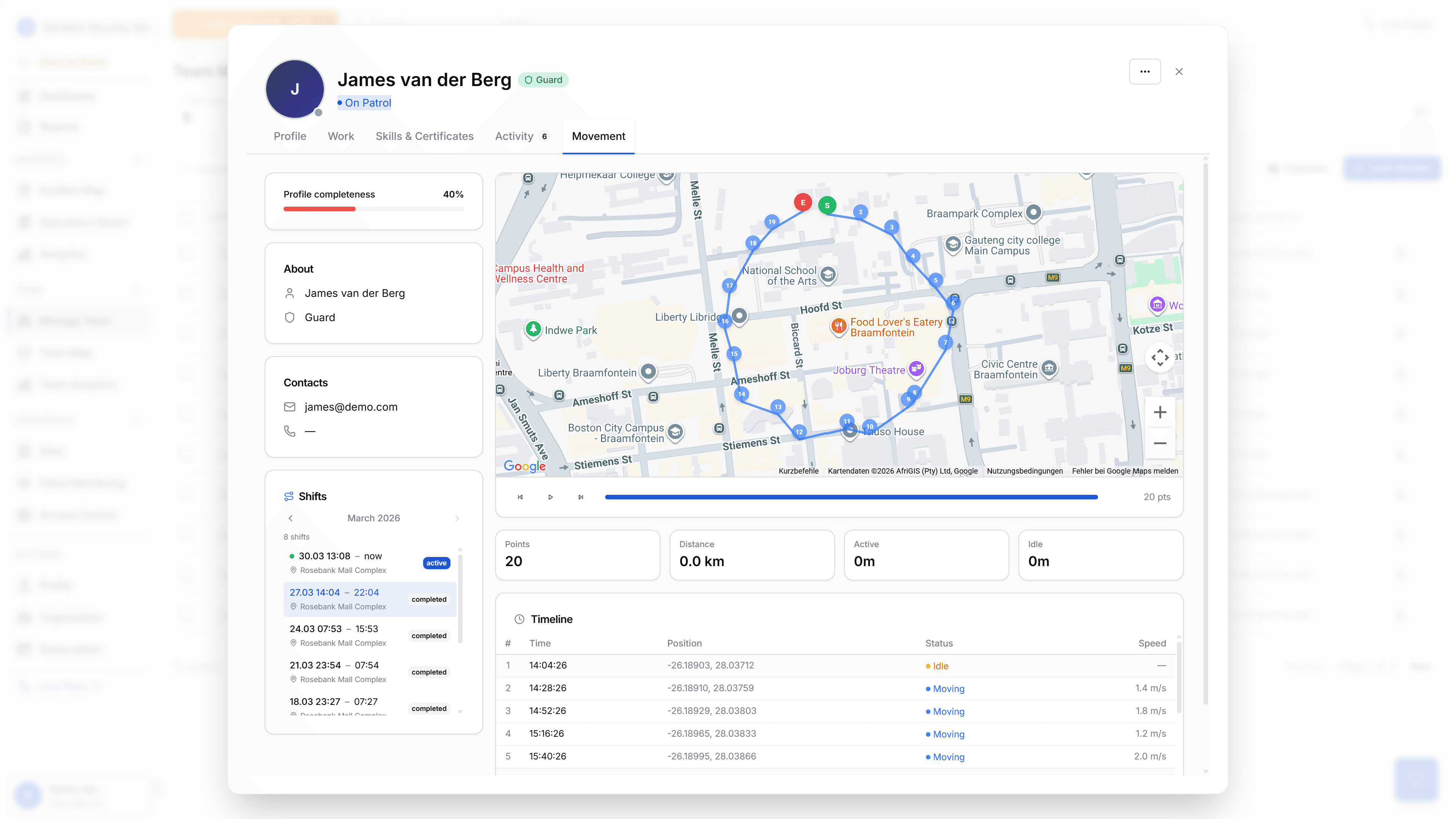
The Guard Details Modal includes a Movement tab that shows a shift-scoped GPS route on the map.
What you see:
- A polyline tracing the guard's path during the current or selected shift.
- Markers: S (green, shift start), E (red, shift end), Now (blue pulsing dot if shift is still active), and numbered waypoints along the route.
- Stats bar: Points (count), Distance (X.X km), Active time (Xh Xm), Idle time (Xm).
- Playback controls: skip back, play/pause, skip forward, and a progress slider.
- Timeline table: row number, time (HH:mm:ss), position (lat, lng), status (Moving or Idle), speed (X.X m/s).
Movement history data has a 30-day retention period. Older data is automatically deleted.
This view is only available inside the Guard Details Modal. The main map does not show movement trails or route history.
 Click to expand
Assigning Guards to Emergencies
When an emergency alert is active, you can assign a guard directly from the map:
- The emergency alert appears on the map and in the alerts banner.
- Select a guard. The system shows the distance between the guard and the emergency location as a reference.
- You manually choose which guard to assign. The system does not auto-assign based on proximity.
GPS Update Intervals
Guard phones send GPS positions at battery-adaptive intervals:
| Battery state | Interval |
|---|---|
| Charging | 60 seconds |
| Above 50% | 120 seconds |
| Above 20% | 180 seconds |
| 20% or below | 300 seconds |
The primary factor is battery level, not movement detection.
Offline Detection
A Cloud Function named checkOverdueGuards runs every 30 minutes. It checks each guard's last GPS timestamp. If the timestamp is stale, the system writes an offline event to the activity logs. The offline indicator (red pulsing dot with "Xm") then appears on the guard's card in the sidebar.
How to Use This Screen During a Shift
At shift start:
- Open Team Map.
- Check the Active counter. It should match the number of guards you expect on duty.
- Scroll through the Active Guards list. Confirm each guard shows a recent Last update time.
- If any expected guard is missing from the list, contact them.
During the shift:
- Keep Team Map open on a monitor.
- Watch the Unassigned counter. If it changes from 0 to any other number, an emergency alert needs a guard assigned.
- Check the Active counter periodically. If it drops, a guard may have gone offline.
- Use the map to verify guards are in expected locations.
At shift end:
- Review the Active Guards list. Guards who have ended their shift will stop sending GPS positions and drop off the list.
- Verify that incoming shift guards begin appearing.
Quick Reference
| I want to... | Do this |
|---|---|
| See all active guards | Open Team Map. All guards reporting GPS positions are shown by default |
| Find a specific guard | Scroll the Active Guards list or look for their icon on the map |
| Check if a guard is still online | Look at their Last update time on their card |
| Respond to an emergency alert | Check the Unassigned counter, then assign a guard from the map |
| See a guard's patrol route | Click Details on their card, then open the Movement tab |
| Check a guard's battery level | Click Details on their card. Battery is shown under Current Status |
| View a guard's device info | Click Details on their card. Device & Network section shows model, OS, and app version |
What the Team Map Does NOT Show
- Geofence alerts. The map shows positions only. There are no geographic boundary alerts.
- Speed detection. Guard speed is shown in the Movement History timeline, but there are no speed limit alerts or pattern detection on the main map.
- Heatmaps. There is no historical heatmap of guard movements.
- Coverage zones. There are no defined coverage areas or zone boundaries on the map.
- Proximity auto-assignment. Distance to an emergency is shown as a reference, but the system never auto-assigns the nearest guard. Assignment is always manual.
- Signal loss vs inactivity distinction. The offline detection checks GPS staleness only. It cannot tell whether a guard lost signal or simply stopped moving.
Related Docs
- Team Management - guard roster, profiles, skills
- Incident Tracking - emergency and incident workflow
- Dashboard - main dashboard with guard status widget