Monday morning at a managed property. A resident claims they were denied entry at 7:15 AM
They are upset. They say the guard was rude. They want the guard's name and they want something done about it. Your operations manager needs to verify what actually happened.
In a traditional setup, that means finding the right logbook, hoping the entry was actually written down, and hoping the handwriting is legible. If the guard was on a different shift rotation that week, tracking down the right person adds another layer of effort.
The sign-in book gives you disputes with no resolution. Digital access control gives you data.
How MyProtektor handles it
Three ways to verify at the gate
Guards scan QR codes using the MyProtektor app on their existing smartphone. No special hardware, no turnstiles, no cabling.
Resident Access IDs, each resident has a personal QR code, cryptographically signed with Ed25519. The guard scans it, and the app verifies the signature on the device itself, no internet required. The result is one of three states: VERIFIED (resident assigned to this site), CAUTION (valid QR but not assigned to this site), or DENIED (invalid or forged code).
Visitor invitations, admins create a visitor invitation from the web dashboard, generating a QR code that can be shared with the visitor via WhatsApp or email. When the visitor arrives, the guard scans their invitation and captures a photo.
Walk-up registration, for unplanned visitors, guards register them on the spot by capturing their name and a photo directly through the app.
After every scan, the guard selects the site and taps Grant or Deny. The decision is logged immediately.
 Click to expand
Guards verify access from the mobile app
The admin dashboard handles invitations, policies, and logs. The actual verification happens at the gate on the guard's phone, where speed and clarity matter.
 Click to expand
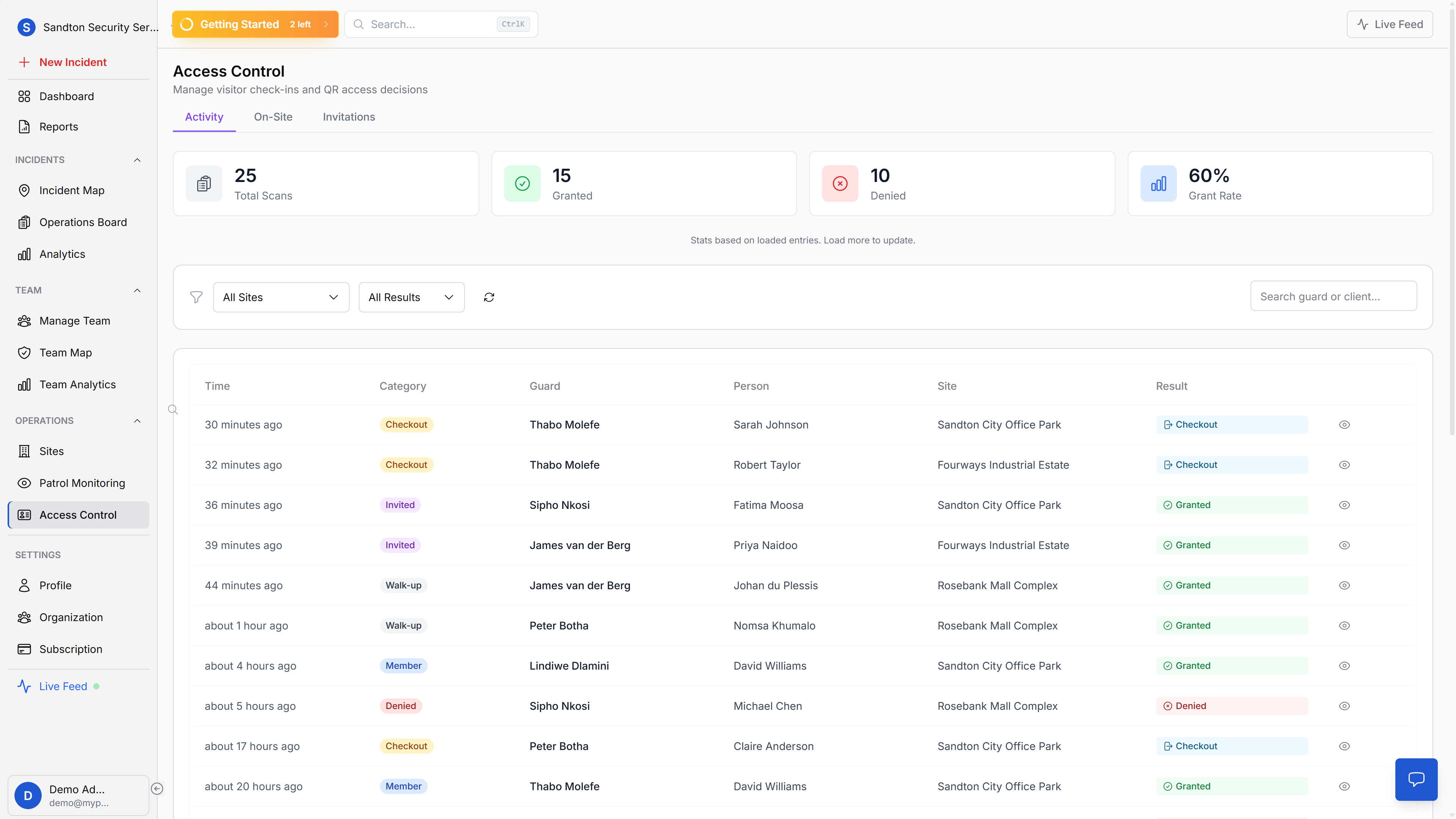
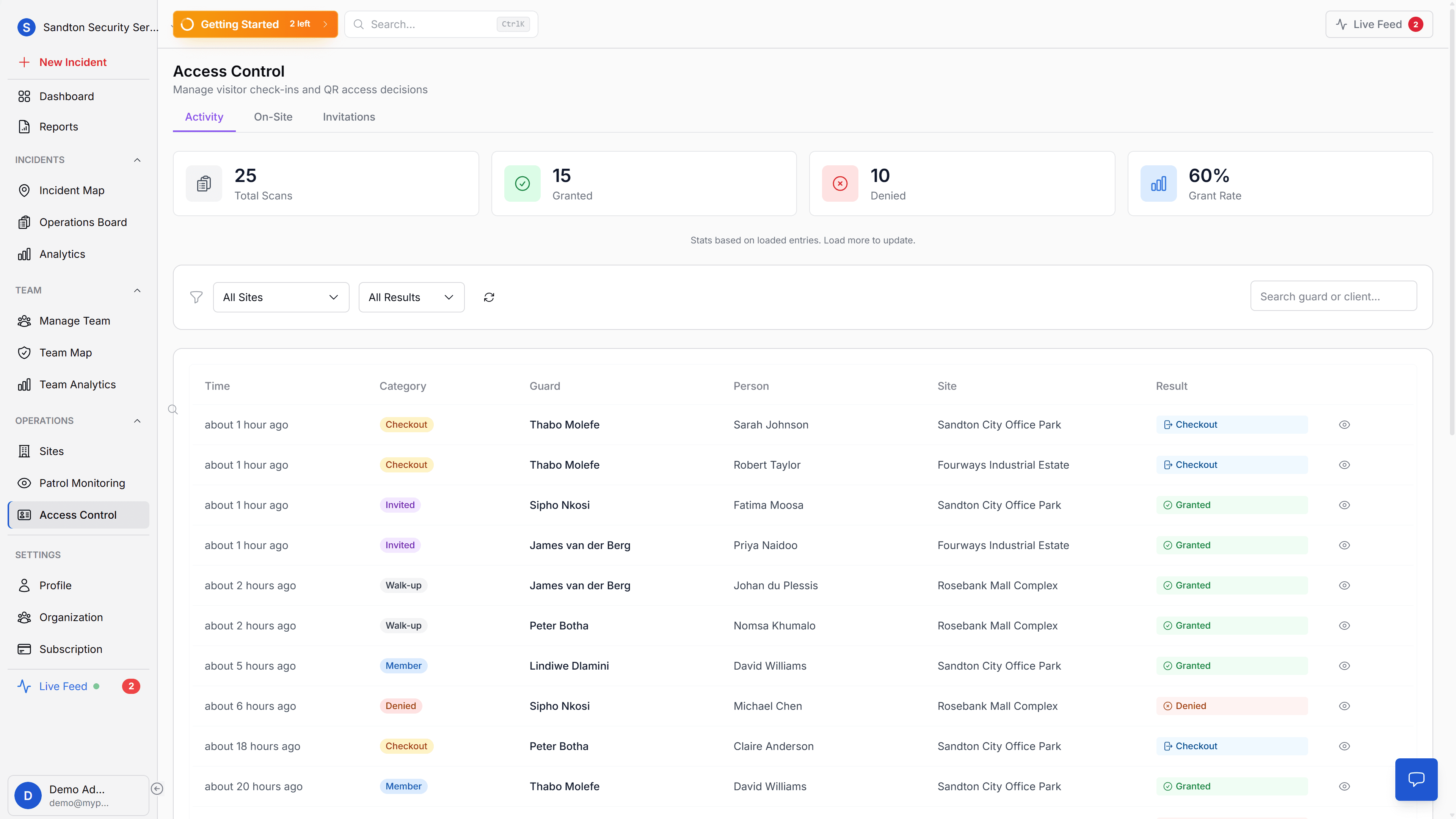
From the web side, your operations team sees the full stream of granted, denied, invited, and walk-up events across sites.
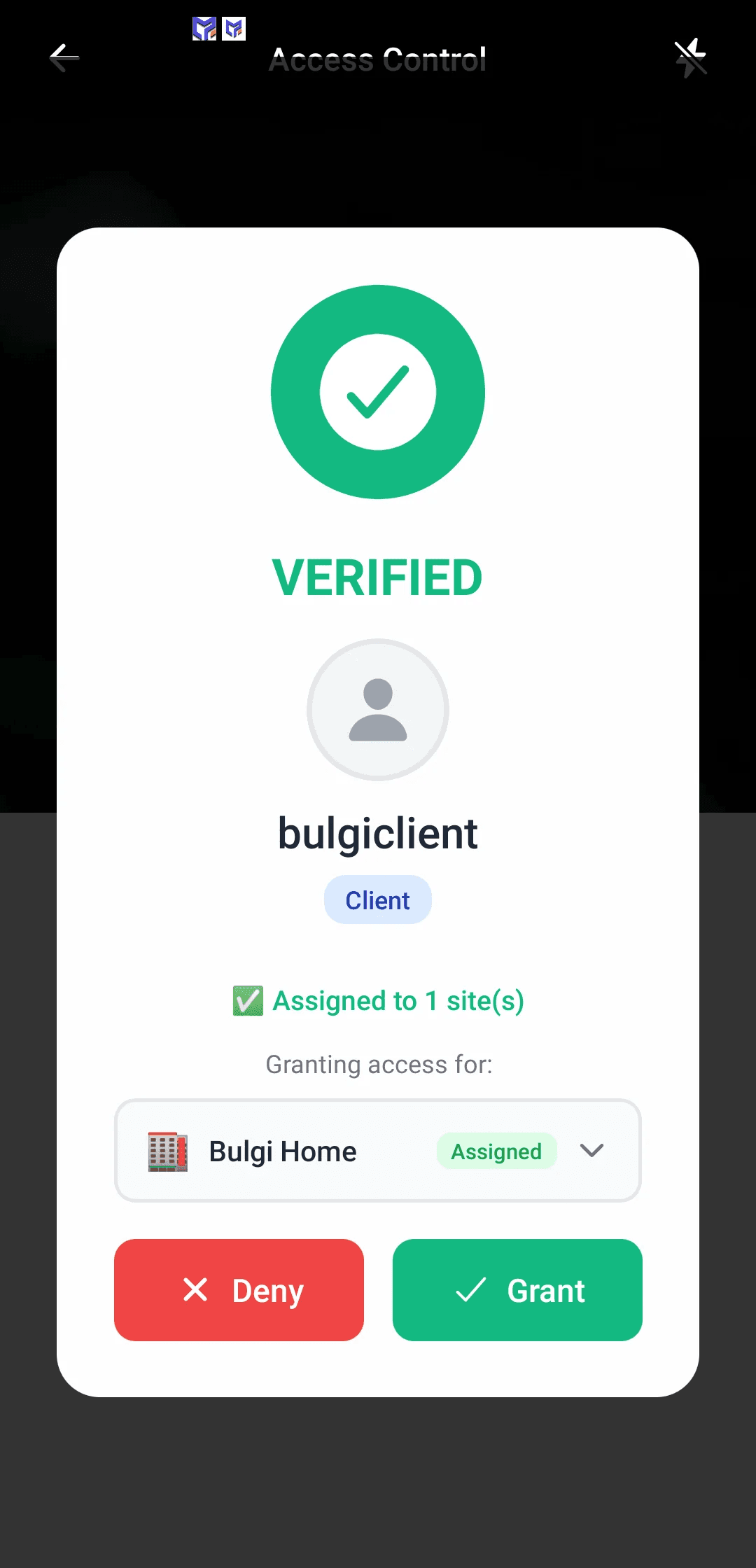
At the checkpoint, the guard scans the QR code in the mobile app, gets the decision instantly, and the event is logged back to the dashboard.
Every decision logged and traceable
Every access decision captures the guard's identity, the resident or visitor's identity, the site, the timestamp, the verification result, and the grant/deny decision. When a resident disputes an entry decision, or claims it never happened, your operations manager opens the access log and has the complete record in seconds.
A dashboard with three views
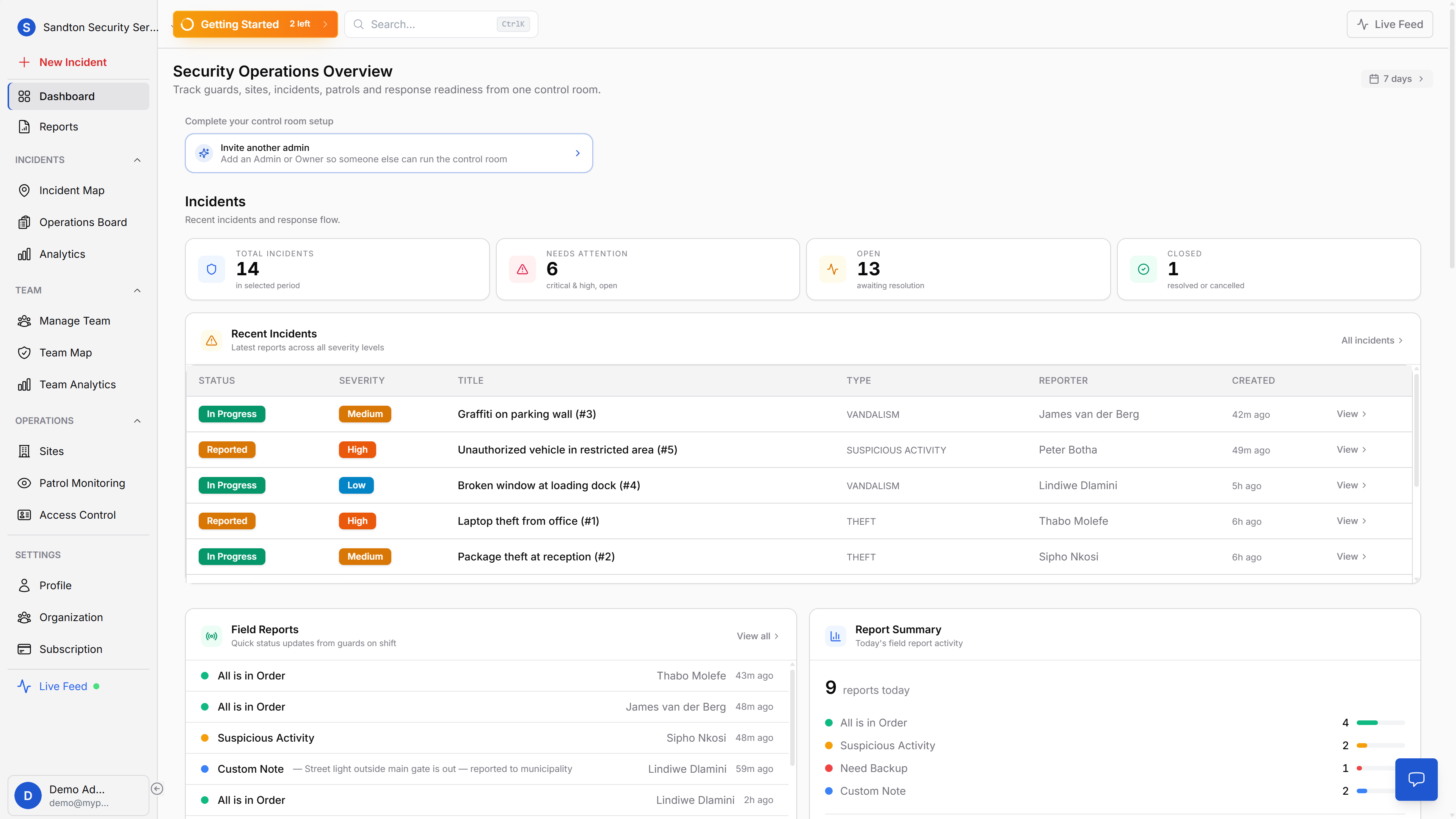
The access control dashboard gives admins three tabs: Activity (all gate events with summary stats, total scans, granted, denied, grant rate), On-Site (visitors currently checked in), and Invitations (create, share, and track visitor invitations). The main dashboard also shows the last five access decisions in a compact widget.
Why this matters for your business
Disputes end with data. The guard's name, the timestamp, the resident's identity, and the decision, all documented automatically. No conflicting stories, no illegible handwriting, no missing logbooks. When a property manager, HOA, site manager, or operations lead asks "what happened at 7:15 AM?", you have the answer in seconds.
Forgery protection. Ed25519 cryptographic signatures mean a QR code cannot be photocopied, screenshotted, or faked. If someone tries to present a screenshot of someone else's Access ID, the scan fails. This matters at residential communities, campuses, facilities, and managed access sites where entry disputes are common and security teams get blamed when unauthorised people enter.
Works offline. QR verification runs on the device, the guard does not need internet to verify a resident. Scans queue locally and sync to the cloud when connectivity returns. Basements, parking garages, remote gates, and sites with poor signal are all covered. When network outages, weak coverage, or power disruptions interrupt cloud-only tools, offline verification keeps gate decisions moving.
Visitor management without paperwork. Security firms managing estate access spend hours on visitor logbooks, writing names, checking IDs, flipping through pages. Digital invitations shared via WhatsApp before the visitor arrives mean the guard scans a QR code instead of filling in a form. The visit is logged automatically.
Getting started
Generate resident Access IDs and visitor invitations from your web dashboard. Share them via WhatsApp or email. Guards scan with the same MyProtektor app they use for everything else, no new hardware, no gate integration, no cabling. Access control requires the Professional plan.
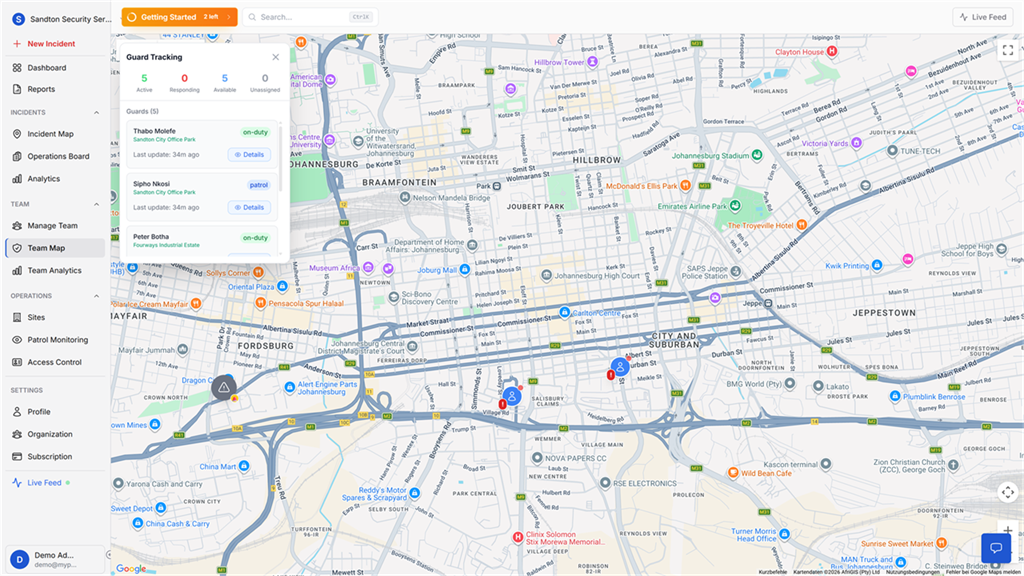
Access control data feeds into your control room dashboard via a compact widget showing recent gate decisions, and connects to guard tracking since guards must be on an active shift to scan.
For setup instructions, see the Access Control documentation.