
Access Control - QR IDs and Gate Logs
Overview
The Access Control system lets guards verify residents and visitors by scanning QR codes with the MyProtektor mobile app. Every scan decision is logged with the guard's identity, timestamp, GPS coordinates, and the verification result.
Access Control is available when the accessControl feature is enabled for your organization. The web dashboard is an Admin+ workflow, while scanning in the mobile app is a Guard+ workflow. Guards must be on an active shift to scan.
 Click to expand
Resident Access IDs
Resident/member access IDs are not created from the web Invitations tab.
The current product splits access like this:
- Resident/member Access ID: generated by the member inside the mobile app from My Access ID
- Visitor invitation QR: created from the Invitations flow
How a Resident Access ID Works
- A user who belongs to the organization opens the mobile app
- They tap My Access ID
- The app requests a freshly signed QR from
/api/access-control/generate-id - The QR is shown for gate scanning
The QR is generated server-side and signed with Ed25519. It is short-lived and refreshed on demand, so it is not a long-term static pass.
What admins actually control
Admins do not manually create a resident QR from the dashboard. What admins control is:
- whether the user is a valid organization member
- whether their membership/access has been revoked
- which sites that client user is assigned to
If access must be blocked, an admin can invalidate the member's Access ID, which forces the next scan to fail until a fresh valid QR is generated.
Creating Visitor Invitations
- Go to the Invitations tab in Access Control
- Click Create Invitation and select Visitor
- Enter the visitor's name and expected visit details
- Share the generated QR code via WhatsApp or email
When the visitor arrives, the guard scans their invitation QR and captures a photo. The visit is logged in the On-Site tab until the visitor is marked as departed.
 Click to expand
Walk-Up Visitor Registration
For unplanned visitors without a QR invitation:
- The guard selects Walk-Up Registration in the mobile app
- Enters the visitor's name
- Captures a photo
- Selects the site and taps Grant or Deny
The decision is logged the same way as a QR scan, guard identity, timestamp, GPS, and result.
Understanding Scan Results
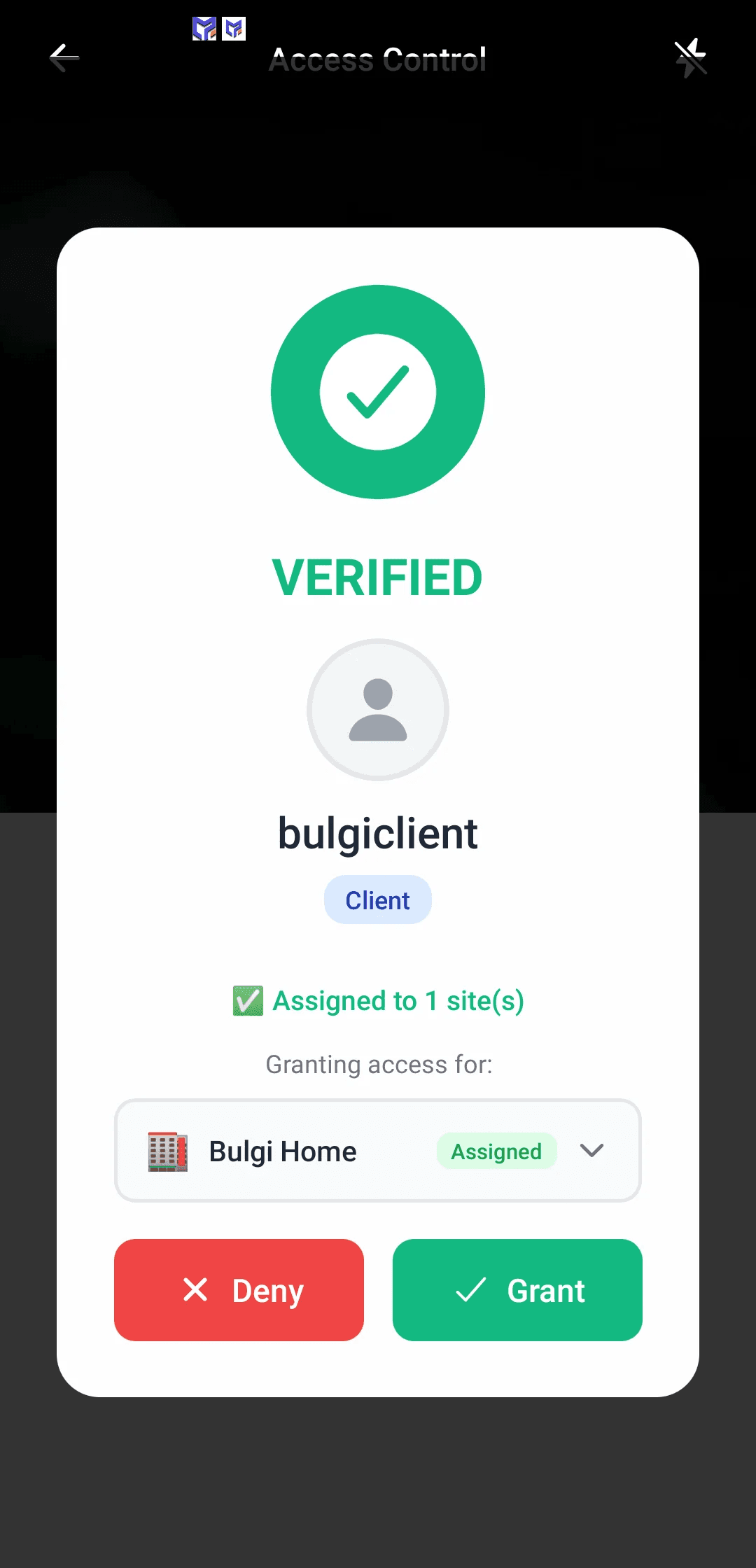
When a guard scans a QR code, the app returns one of three results:
| Result | Meaning | Guard action |
|---|---|---|
| VERIFIED | Valid QR and confirmed site assignment while online | Grant access |
| CAUTION | Valid QR, but either not assigned to this site or being checked with limited/offline context | Use judgement, may be visiting from another property |
| DENIED | Invalid, expired, or forged QR code | Deny access, report if suspicious |
Signature verification happens on the device using Ed25519 validation, so the app can still recognize a valid QR offline. But offline mode is treated conservatively: the scan falls back to CAUTION because cached membership and site-assignment data may be stale.
The Access Control Dashboard
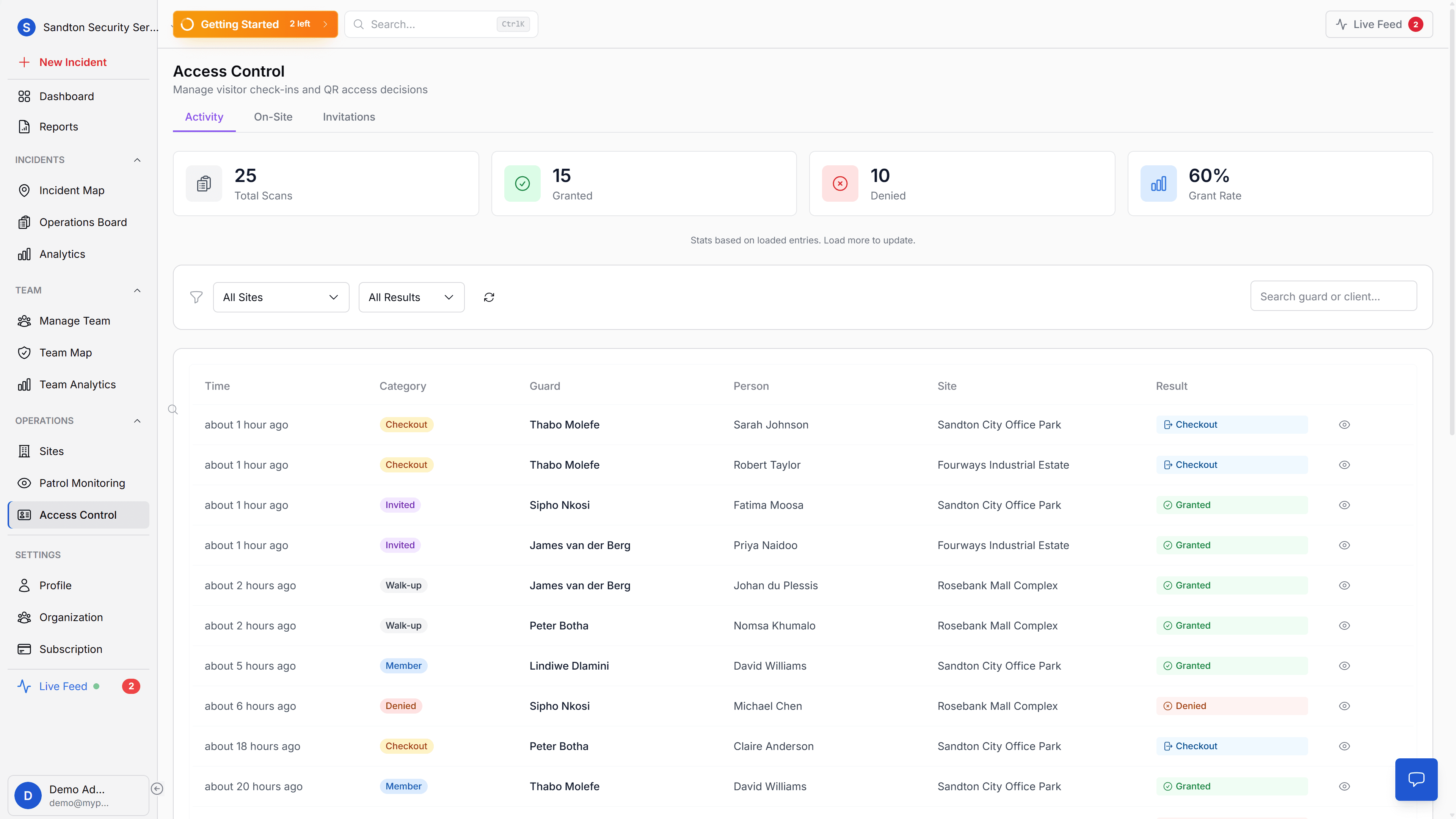
The dashboard has three tabs:
Activity Tab
Shows all gate events with summary statistics: total scans, granted decisions, denied decisions, and grant rate. Each row shows the guard, resident/visitor, site, timestamp, and decision.
On-Site Tab
Lists visitors currently checked in, both walk-up registrations and invited visitors. Residents are not shown here (they don't "check in"). Visitors who have been on-site for more than 8 hours are automatically marked as stale by a scheduled function.
Invitations Tab (Admin+ only)
Create, view, and manage visitor invitations. This tab is for expected visitors, not for issuing member/resident Access IDs.
The main dashboard also shows the last 5 access decisions in a compact widget for at-a-glance monitoring.
 Click to expand
What Access Control Does NOT Do
- No gate hardware integration, guards scan QR codes on their phone; the system does not open or close physical gates
- No facial recognition or biometric verification
- No automatic number plate recognition (ANPR)
- No custom branding for access cards or QR codes
The system is phone-based and software-only. It replaces the sign-in book, not the gate hardware.
Related Solutions
- Digital Access Control -- the full solution page covering QR-based access management
Common Issues
Guard cannot scan: Ensure the guard is on an active shift. Access control scanning is shift-gated, the guard must start their shift in the mobile app before scanning.
CAUTION result for a known resident: The resident's QR is valid but they are not assigned to the specific site being scanned. Check site assignments in the Invitations tab.
Scan not appearing in dashboard: If the guard scanned while offline, the result will sync when connectivity returns. Check the guard's network status in the team map.