Admin Manual - Live Feed
Overview
- Emergency Alerts: Surfaces live panic activations or high-priority incidents triggered by guards or clients.
- Incident Updates: Presents new reports, status changes, or notes appended to existing incidents.
- Guard Activity: Monitors guard status including shift starts, going offline, or responding to alerts.
- Filter Tabs: Toggle between All, Emergency, Incidents, or Guards to concentrate on specific event types.
- Action Buttons: Rapidly access All Emergency Details, View Details, or Map to verify information and coordinate responses.
- Status Indicators: Highlight emergency severity levels, flagging Critical, Active, or Escalated events as they happen.
Use Case
Admins, control room operators, and supervisors rely on the Live Feed to track ongoing activity and respond promptly to emergencies.
Whenever a guard or client triggers a panic alert, it surfaces immediately in the feed with location, contact, and status information. Operators can open View Details or All Emergency Details for full medical and contact data, then click Map to locate the incident.
Beyond emergencies, the feed continuously updates with guard shifts, incident progress, and system alerts, enabling teams to coordinate responses and maintain complete situational awareness throughout their shift.
Step-by-Step Instructions
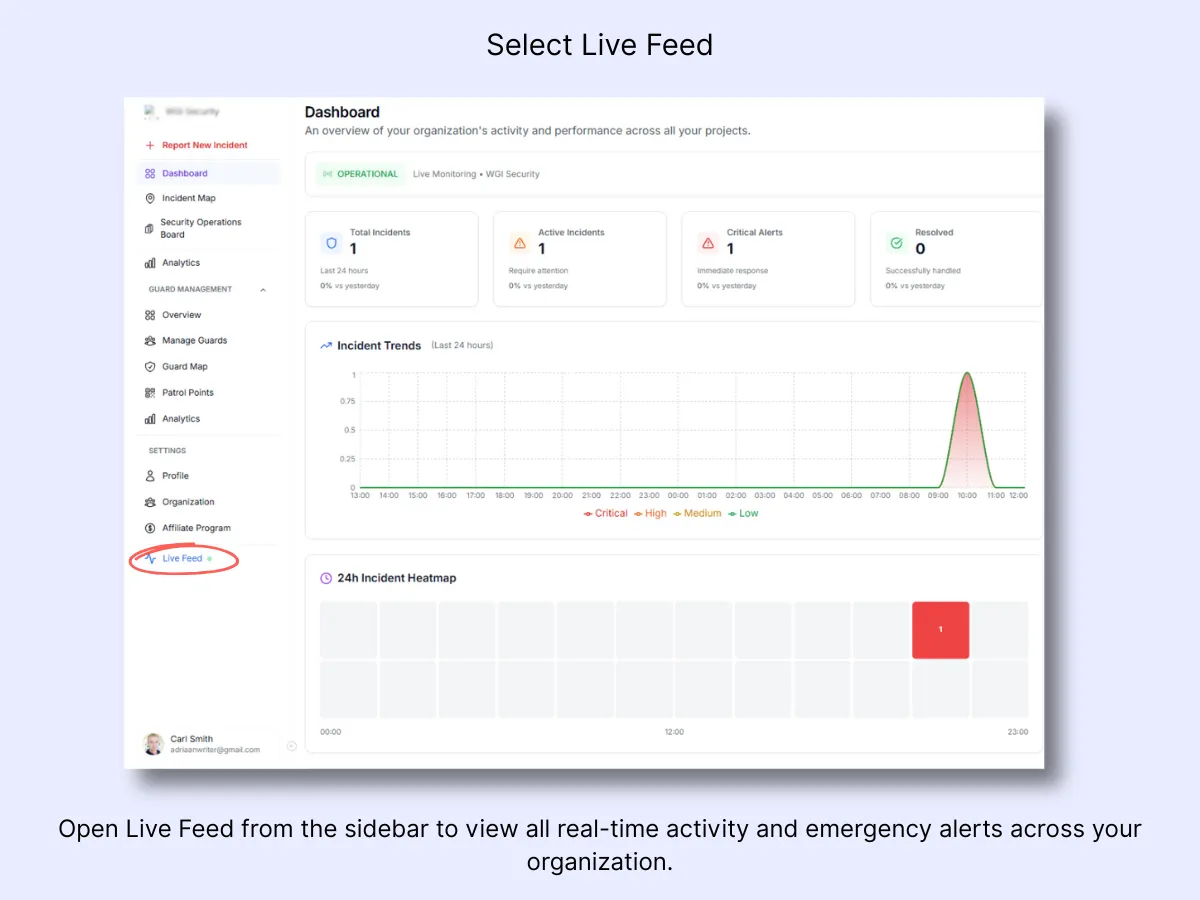
Step 1 – Open Live Feed
In the sidebar, scroll to the Settings section and click Live Feed. This launches the live activity stream, displaying all real-time events including emergencies, incident reports, and guard updates. A small green dot beside the name confirms that live updates are active.
Step 2 – View live activity summary and filters
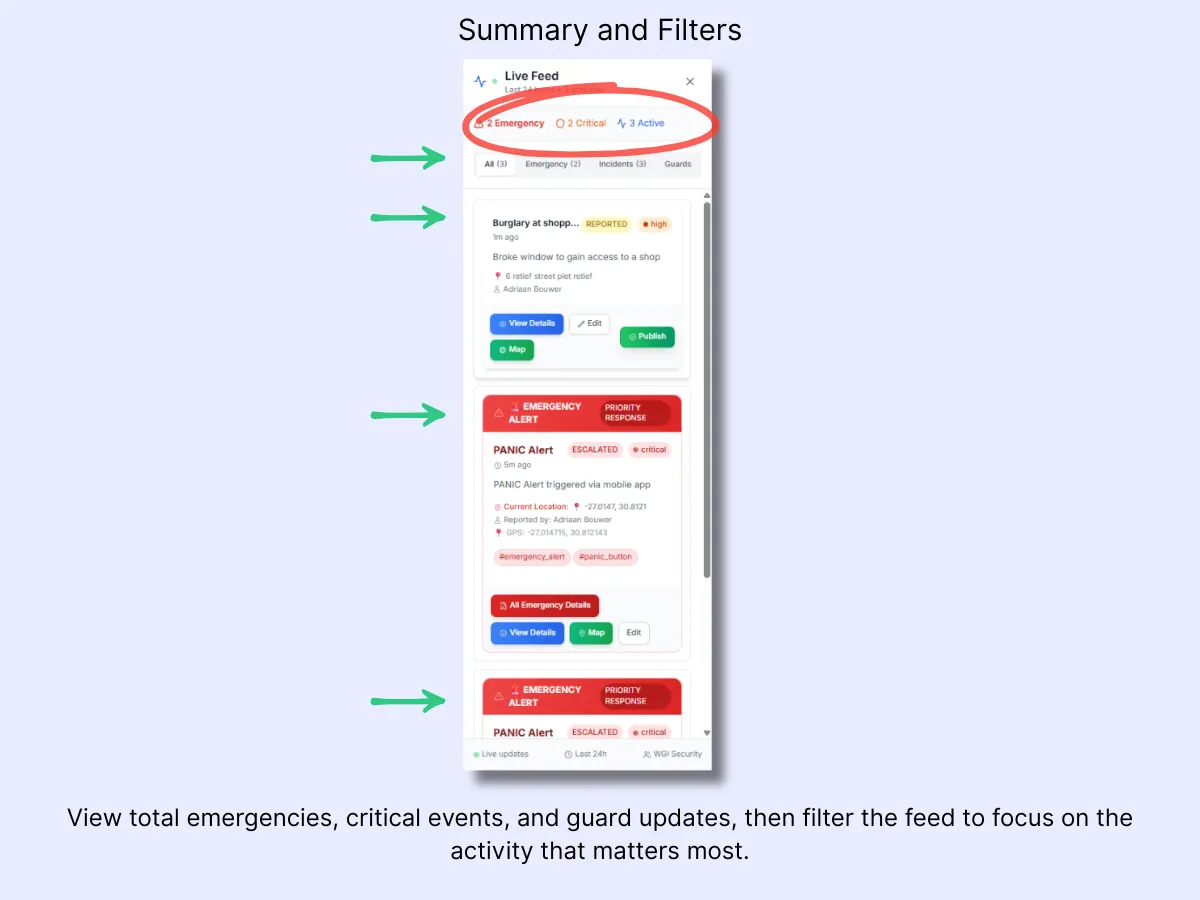
Once the Live Feed is open, review the top summary bar to see the current count of Emergencies, Critical, and Active events in progress. These counters refresh automatically as new reports arrive, providing a quick snapshot of real-time conditions.
Use the filter tabs below to narrow your view:
- All: Shows every update.
- Emergency: Displays only panic alerts and high-priority incidents.
- Incidents: Lists ongoing or newly reported incidents.
- Guards: Shows guard-related updates such as shift starts or location changes.
The counters combined with the filters allow you to rapidly assess the situation and focus on the most pressing items.
Step 3 – Interact with incident and emergency cards
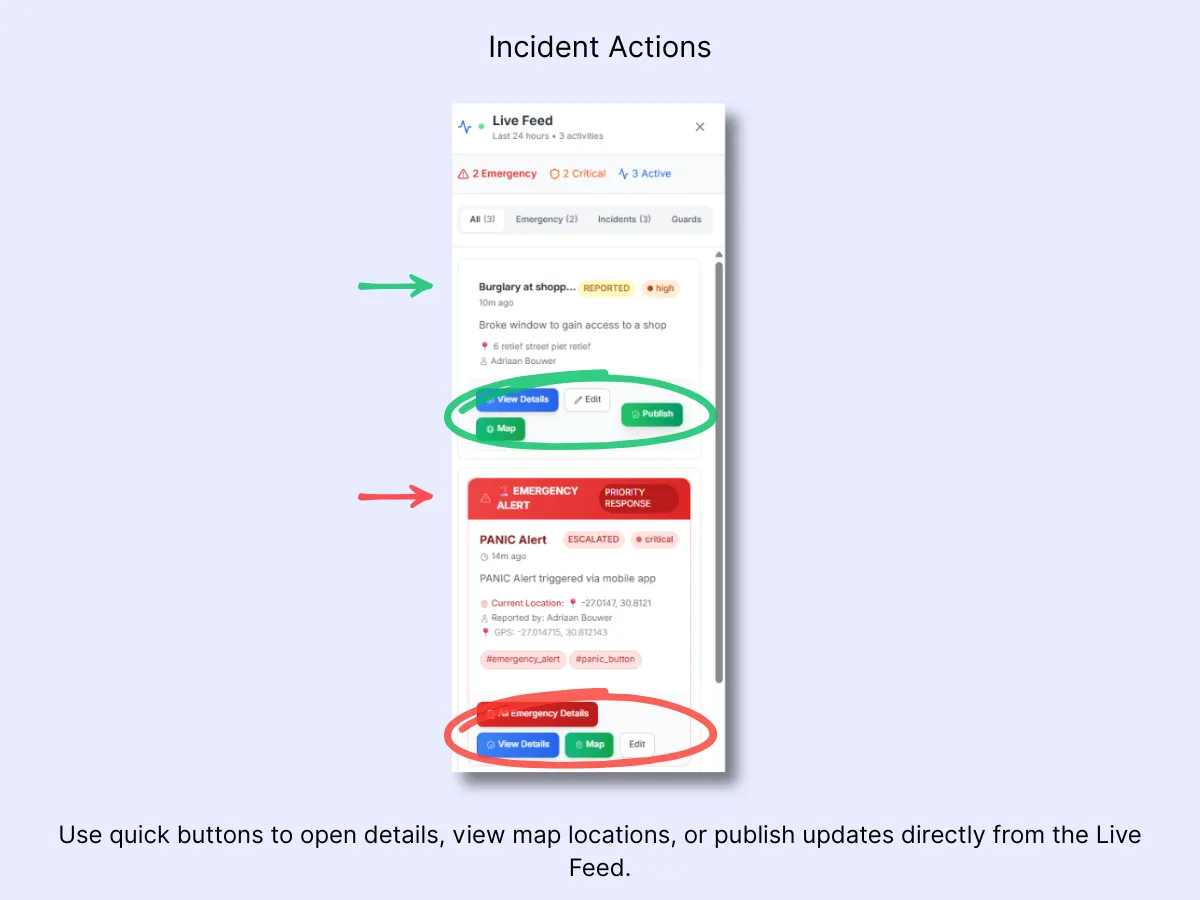
Every card in the Live Feed represents an event happening in real time. You can open, edit, or take action on them directly from this screen.
For regular incidents (such as theft or vandalism reports):
- View Details: Opens the complete incident record where you can review the report, add notes, or change the status.
- Map: Pinpoints the exact location of the reported incident on the map for quick verification or dispatch.
- Edit: Enables admins to update descriptions, assign guards, or modify severity.
- Publish: Sends the incident to the Client Portal so authorized clients can access it.
For emergencies (such as panic activations):
- All Emergency Details: Opens the Emergency Alert Details window, displaying the reporter's contact info, medical details, and GPS location.
- View Details: Loads the associated incident report for tracking progress or adding admin notes.
- Map: Centers the reporter's live GPS location on the map to help coordinate response teams.
- Edit: Allows admins to update or escalate the emergency record when additional action is required.
These quick-action buttons enable operators to handle incidents and emergencies immediately without navigating away from the Live Feed.
Workflow Example
- A guard triggers a panic alert through the MyProtektor mobile app.
- The alert surfaces instantly in the Live Feed, labeled as Emergency Alert – Critical.
- The control room operator clicks All Emergency Details to review the reporter's information, medical data, and location.
- With Map, they verify the guard's live GPS coordinates and dispatch the closest response team.
- At the same time, another admin opens a regular incident card to review a "Burglary" report. They click View Details to update the case and use Publish to inform the client.
- As each update is saved, the feed refreshes automatically, indicating which incidents are Active, Escalated, or Resolved.
- The team keeps the feed open throughout the shift to track incoming reports, confirm responses, and maintain full visibility over ongoing operations.
Related Solutions
- Control Room Dashboard — the full command view with map, stats, and live activity
- Real-Time Incident & Emergency Response — how incidents flow from field to control room
- Mobile App with Panic Alerts — how panic alerts are triggered and received