
Admin Manual - Guard Map
Overview
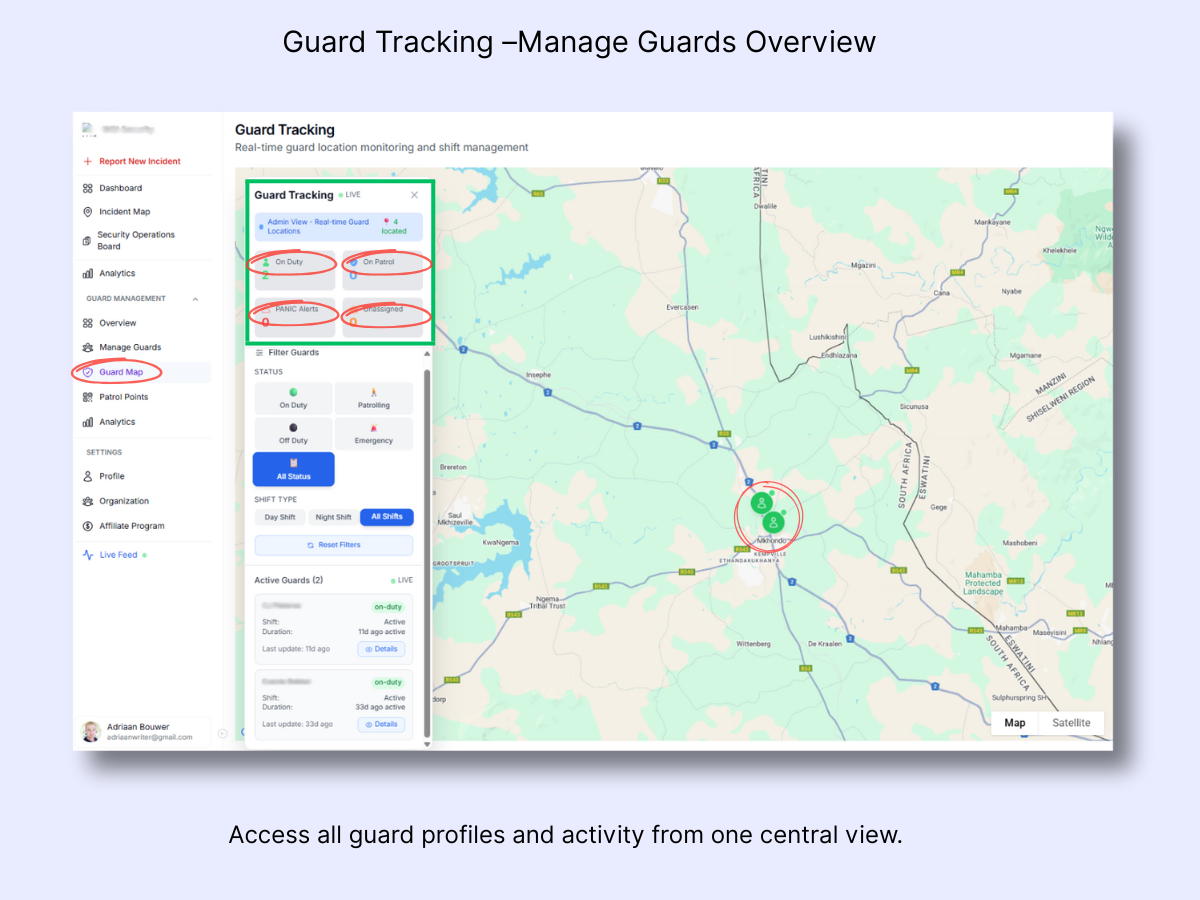
The Guard Map presents live guard positions and ongoing activity updates in real time. Admins rely on it to monitor who is currently on duty, patrolling, or handling an emergency across all operational sites.
- Guard Tracking Panel: Shows the current system state, including the total number of guards being tracked and their activity categories.
- Status Summary: Provides at-a-glance counts for On Duty, On Patrol, Panic Alerts, and Unassigned guards.
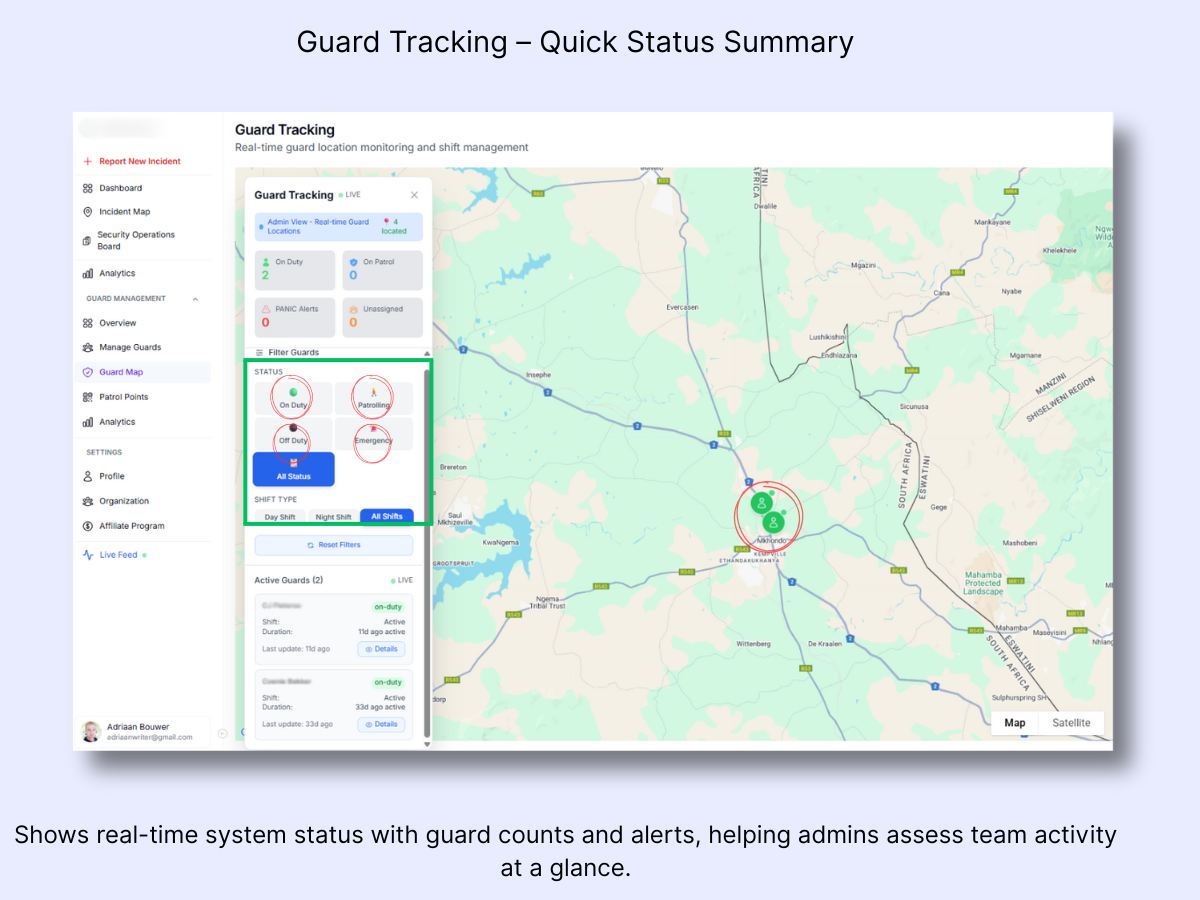
- Filter Guards: Refine the view by Status (On Duty, Patrolling, Off Duty, Emergency) or Shift Type (Day, Night, All Shifts).
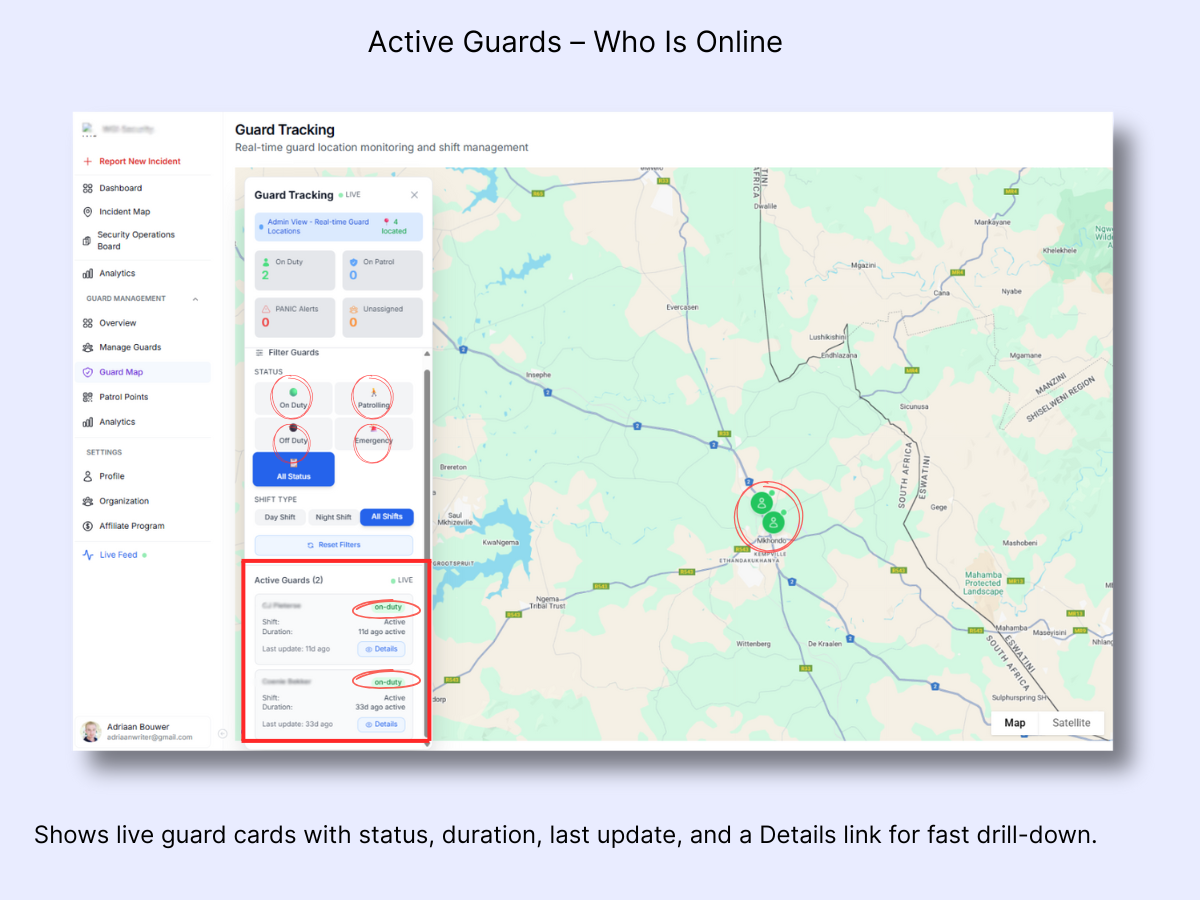
- Active Guards List: Lists each guard with their name, shift status, time on duty, and most recent update, along with a quick link to Details.
- Map View: Positions guard icons on the live map, refreshing automatically as guards move or their status changes.
- Reset Filters: Instantly clears all active selections so you can return to the complete team overview.
Use Case
Suppose an admin needs to confirm that every night-shift guard has begun their patrol and that site coverage is evenly distributed. By launching the Guard Map, they can immediately:
- Apply the Night Shift filter to isolate currently active personnel.
- Review the On Duty and On Patrol totals displayed at the top of the panel.
- Observe guard icons on the map to verify their live positions.
- Identify any Unassigned or Emergency alerts requiring immediate action.
- Click Details next to a guard's name to inspect activity duration or last update timestamp.
This gives the control room the ability to sustain oversight, act swiftly, and ensure every post has coverage in real time.
Related Solutions
- GPS Tracking Software for Security Guards — live guard locations on one map
- Guard Coverage & Availability Management — know who is available and where
- Shift and Duty Management — see who is officially on duty at all times
Daily Use – Step by Step
Step 1 – Open Guard Map and scan the live summary
- Navigate to Guard Management > Guard Map.
- Verify that you see Guard Tracking - LIVE.
- Perform a quick status review: read the counters for On Duty, On Patrol, PANIC Alerts, and Unassigned.
- Look through Active Guards to check names, current status, duration, and Details.
- Ensure All Status and All Shifts are selected for an unfiltered view. If filters appear active, tap Reset Filters.
Step 2 – Review the Guard Tracking summary
- Confirm the LIVE indicator is visible, verifying the system is receiving active updates.
- Examine the quick stats:
- On Duty: number of guards currently active.
- On Patrol: number of guards moving along routes.
- PANIC Alerts: ongoing emergencies that need attention.
- Unassigned: guards not yet linked to a post or shift.
- Use this panel to quickly gauge overall team activity before applying filters or exploring map details.
Step 3 – Check the Active Guards list
- Under Active Guards (x), review each card for status (on-duty), shift state, duration, and last update.
- Click Details on any guard to open their profile or view live context.
- Refer to this list to confirm who is currently online before filtering or dispatching.
Workflow Example
Typical Guard Map Workflow – Admin Perspective: The admin launches Guard Map to begin a shift verification check.
- They review the Guard Tracking Summary to confirm the number of active guards and verify there are no PANIC Alerts.
- Next, they scroll through the Active Guards list to check each member's last update time and whether devices are reporting properly.
- The admin applies the Night Shift filter to concentrate on the current team.
- On the map, they zoom in to confirm that guards are positioned at expected locations, such as gate posts or along patrol routes.
- If a guard appears as Unassigned or inactive, the admin clicks Details to investigate potential connection issues or missed sign-ins.
- After verifying all posts, the admin resets filters to restore the full view and continues monitoring for incoming alerts.